Watch IPL 7 T20 Live Streaming Online for free in PC& Android Phones & iPhone Officially
Though many Off-field issues, IPL7 or Pepsi IPL 2014 gets underway in UAE on Wednesday night. This 2014 IPL edition has already garnered so much attention, because of the General Elections in India, the IPL 7 will be jointly hosted by UAE and India. The First leg of the 2014 IPL edition will be played in Abu Dhabi, Dubai and Sharjah with the tournament returning to India on 2 May.

You can watch this live on Sony Set Max and of course in stadium if you got tickets in the long queue. In addition, now you can watch the proceedings on your mobiles phones or with your systems online via live streaming channels. Now, this Tournament has been moved to UAE, Indian Cricket lovers only have options of TV or Live streaming in Phones or PC.

Watch IPL 7 Live Streaming on Android, iPhone and PC

IPL 2014 edition will have 8 teams after the withdrawal of Pune Team. IPL 7 scheduled to play between 16th April 2014 to 1st June 2014. There will 56 matches in the Group stage, Qualifier 1 , Eliminator, Qualifier 2 and the Grand Final.

Broadcast Rights Web

Like Previous edition, Times Internet has digital Rights for IPL 7 Online Streaming. In this 2014 IPL Edition, Times Internet has shared the digital rights with Startsport.com instead of YouTube which has been long time partner with Times Internet since the IPL Inception. Now, You can watch the IPL 7 Live streaming with Startsports.com. If you are in UK, You can watch the IPL 7 via ITV4 channels.
You can also watch the IPL 7 Live Streaming online for Free from the Official Site http://www.gocricket.com/ipl2014

IPL 7 Mobile Streaming Online

You have the chance to watch the IPL 7 Live streaming via Mobile Phones like the Previous season. Thanks to , DigiVive’s live TV streaming app nexGTv  which has got an online broadcasting rights from Times Internet to stream live match Feeds in Android mobiles, iPhones and in Blackberry devices.
Apart from all the matches, users will be able to watch match repeats and highlights as all this will be available in the Video-on-Demand section,” Digivive said in a release.

Download this nexGtv Apps

With lot of options available to you to watch IPL 7 Live. So don’t’ miss any Live actions during IPL 7.
The easiest and convenient way to carry your digital files is to use pendrives or flash drives. Increasing demands of such types of drives may also cause some security problems, such as stealing the information that was not for an unauthorised user. Many of the third party paid applications are available on internet prompting for securing the data. But why to bother if you can secure the drive by your own without using any application. Today, I am here to show you how to password protect any USB drive without using any application.

Password protect USB drives without using any software
Password protect USB drives without using any software_FunWithTricks.Com

Steps you have to perform
1. Plug in your USB device into machine running with Windows 7 or 8 operating system.
2. Click on Start menu.
3. Search for Bitlocker Drive Encryption. Choose first from results.

Password protect USB drives without using any software_FunWithTricks.Com


4. You should find your flash drive in listing. Turn On bitlocker for that specific device.

Password protect USB drives without using any software_FunWithTricks.Com

5. It will ask you for password. Just fill it with desired one. Click next.

Password protect USB drives without using any software_FunWithTricks.Com

6. Save the recovery key to a file if in case you lost your password in future, it will helpful to retrieve drive contents. You can also print and store this file in microsoft account.

Password protect USB drives without using any software_FunWithTricks.Com

7. Now click on Start Encryption.

Password protect USB drives without using any software_FunWithTricks.Com

It may take some time to complete encryption process depending upon size and speed of data transmission that your pen drive supports. Check whether it's working or not by removing and plugging again into system.
The System will ask you to enter the password to access the data.
YouTube is worlds best video blog nowadays ,if you want to see all the video on YouTube it will take 2,000 years :o . In YouTube you can find any video easily in the world, You can Sign-up and Upload your own video and publish in the YouTube world and you can also earn money from YouTube. But we are here to talk about How To Download YouTube Videos Easily In Any Mobile, There is lot of app in Android and iPhone to download video’s but how to Download in Java and Symbian Mobile’s. Actually download youtube video’s is not a good thing to do but we can download for educational purpose. we can download music from youtube, download video from youtube. you can download youtube videos free of coast but how, here is easy way that works on all types of mobile like Nokia , Samsung, Android ,iPhone etc So Lets find the way How To Download YouTube Videos Easily In Any Mobile
How To Download YouTube Videos Easily In Any Mobile


Follow The Simple Steps

  • Open YouTube.com
  • Find any Video You Want To Download In Your Mobile Or Pc.
  • Open That Video To Watch In your Mobile.
  • Then Do This Small Change In The Address Bar Link.
  • Like I Open This Link “https://www.youtube.com/watch?v=IEwJvPpWV9w
  • Go To Address Bar And Change The Link, Replace https://www. With ss
  • Change it To “ssyoutube.com/watch?v=IEwJvPpWV9w
  • Then It Will Redirect To Download Page Like Below Pic

You Can See That You Can Download Video In Any Formate Here HD to Low Quality In Any Formate Like FLV or Mp4 Etc.

And Here Is All About How To Download YouTube Video Easily In Any Mobile.

Best Free Data Recovery Tools

Saturday, 8 March 2014
Posted by Unknown
Many free data recovery programs exist that can help recover your accidentally deleted files. These file recovery programs can help you recover, or "undelete" files on your computer.

Files you have deleted and then recently emptied from your Recycle Bin are often still present on your hard drive (or USB drive or media card, etc.) and can be recovered using free data recovery software.

Important: You can greatly increase the chance of recovering a file by minimizing your computer use as soon as possible.


(1)UndeleteMyFiles Pro

UndeleteMyFiles Pro is another free file recovery program. Don't let the name fool you - it's entirely free even though it says "Pro."

Tree View and Detailed View are the two viewing perspectives you can choose from. You can also preview files, which sounds nice, but all it does is restore the data to a temporary folder and then open it.

Emergency Disk Image is one of the included tools in UndeleteMyFiles Pro. This tool takes a snapshot of your entire computer, places all the data in one file, and then lets you work through that file to file deleted data that you want to restore. This is very handy because after the image file has been made, you don't need to worry that new data written to your hard drive will replace any important deleted files.

There's a nice search option in UndeleteMyFiles Pro that lets you search by file location, type, size, and attributes.

Something I really didn't like about UndeleteMyFiles Pro is that the recovery process doesn't tell you if a file is in a good state of being recoverable like most of the other software in this list.

I test UndeleteMyFiles Pro in Windows 8 without any issues.

UndeleteMyFiles Pro Free Download


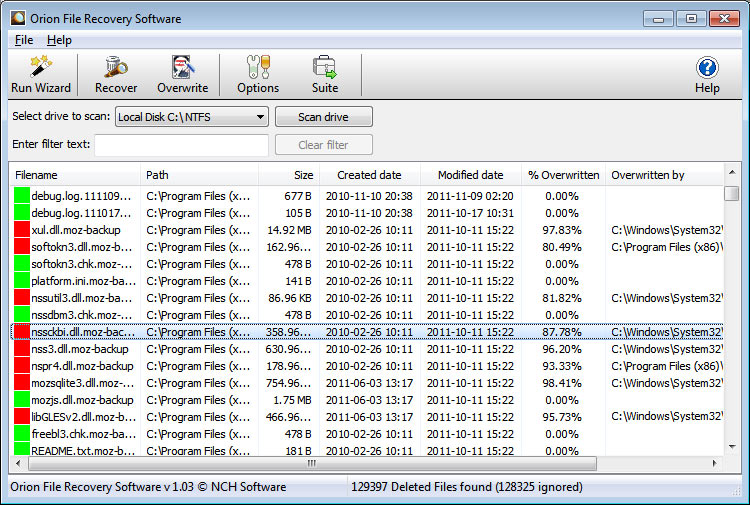
(2)Orion File Recovery Software

Orion File Recovery Software is a free file recovery program from NCH Software that's basically the same as most of the other programs in this list.

A nice wizard prompts you to scan for specific file types at launch of the program, like documents, images, videos, music, or a custom file type. You can also scan the entire drive to search for all file types.

Orion file Recovery Software can scan any attached hard drive, whether internal or external, flash drives, and memory cards for deleted data. Then you can search through the files with an instant search function, while easily identifying the recovery potential of each file.

Orion File Recovery Software works with Windows 8, 7, Vista, and XP. The installer tries to install other NCH Software programs during setup, but just deselect those options if you wish not to install them.

Orion File Recovery Software Free Download


(3)TOKIWA DataRecovery

TOKIWA DataRecovery is an effective file recovery program and is very similar to many others on my list.

The best thing TOKIWA DataRecovery has going for it is its ease of use. It has a single program window where you can scan for files to recovery, sort the files, and undelete them. There are no complicated procedures at all.

TOKIWA DataRecovery can recover files from hard drives, memory cards, USB drives, and other external drives.

DataRecovery supports Windows 7, Vista, XP, 2003, 2000, NT, ME, 98, and 95. I successfully tested TOKIWA DataRecovery with Windows 8.

TOKIWA DataRecovery is a standalone, 412KB file making it a completely portable tool suitable for a USB drive or floppy disk.

TOKIWA DataRecovery Free Download


(4)PC Inspector File Recovery

PC Inspector File Recovery is another good free file recovery program with an arguably "deeper" search for deleted files than other similar undelete programs.

PC Inspector File Recovery can recover files from most hard drives, external drives, and memory cards.

PC Inspector File Recovery supports Windows XP, 2000, NT, ME, and 98. I tested PC Inspector File Recover in Windows 8 and it ran as advertised.

I'd recommend trying PC Inspector File Recovery only if another, higher rated file recovery program didn't do the job for you. The not-so-easy-to-use interface, lack of Vista support, and long hard drive scan times keep this file recovery app out of the Top 10.

PC Inspector File Recovery Free Download


(5)BPlan Data Recovery

BPlan Data Recovery is a file recovery program like the others in this list. It may not look as nice as similar software, but it can recovery many different types of deleted files.

I found BPlan Data Recovery to be a bit difficult to navigate around. It was hard to know what I was doing because of the layout of the results. That said, it still managed to find and recover images, documents, videos, and other file types.

BPlan Data Recovery works with Windows 8, 7, Vista, and XP. I tested BPlan Data Recovery in Windows 8.

On Bplan's site, you can download an EXE version using the Free Download button on the top of their page, or a ZIP version using the button just below it.

Note: Make sure you run BPlan Data Recovery as an administrator in Windows 8 or Windows 7. The program won't work unless it has administrative privileges.

BPlan Data Recovery Free Download


We use Pendrives often and when we plug in our pen drive, memory cards or even mobile phone through USB cable into our windows PC USB port sometimes we are annoyed to see our files changed into shortcut files, even this shortcut virus affects PC Hard disks.


What is Shortcut Virus?

I have seen this problem in PC having antivirus too, when your Pen drive, PC, Hard Disk, Memory cards or mobile phone got infected by some anonymous malware, they change your files into shortcuts with the original folder icons.


Note : After when you got your files, just copy your files somewhere in your PC and format your drive and then copy again your files to the drive. Only then your shorcut virus will get off from your PC...!


Just follow the below given steps to remove, delete, wipe out or whatever the shortcut virus from your pen drive, memory cards or even mobile phone and recover back your files.

Follow the below Steps:

-Go to Start -> Run -> cmd.
-Go to your pen drive, memory cards or even mobile phone directory.
-Type this command: del *.lnk and press Enter.  (or copy the command line from here ,then right click on  your command prompt and paste )
-Then type command: attrib -h -r -s /s /d e:\*.*
-Replace e with your drive letter ,which is infected by virus.
-And then press a gentle Enter.


WAY TO RECOVER FILE USING " WINRAR "

You can recover your files through Winrar.


Open WINRAR Application.
Navigate to your Pendrive location or PC Folder location.
Copy Files and Paste where you want.
Format your Pendrive.


Note : If the Drive gets infected again and again " Do a Boot Time Scan Using Avast Antivirus"

KMSpico v9.2.0 Beta

Thursday, 6 February 2014
Posted by Unknown
Tag :


KMSpico v9.2.0 Beta


Requirements: 

.NET 4.0 or Windows 8/2012.

Activate:
-Windows Vista Bussines/Enterprise
-Windows 7 Professional/Enterprise
-Windows 8
-Windows 8.1
-Office 2010/2013
-Windows Server 2008/2008R2
-Windows Server 2012/2012R2


-Run KMSpico_setup.exe
-Install it.
-(Optional) Create a tokens backup with the buttom: Create.
-Press the Red Button.
-Done.


Recommendations Optional:

- Make exceptions to Directory %ProgramFiles%\KMSpico\*.exe in Antivirus or Defender.

How This Program Works:

-Install KMSpico in Windows.
-Create Shortcuts for KMSpico.
-Disable SmartScreen.
-Run automatically KMSELDI and AutoPico.
-Make Tokens Backup.
-Detect VL or Retail and depending of the License Status activate or convert to VL.
-Activate for 180 days all VL products found.
-Install a windows service that reactive every windows start.
-Create a task schedule for AutoPico to run every 24 hours.


Password: 2014

Adblock Plus for Internet Explorer IE 11

Wednesday, 5 February 2014
Posted by Unknown
Tag :
Adblock Plus for Internet Explorer IE 11


Welcome to My Blog

Welcome to BinaryHacks

Powered by Edgy Facts - Widget

Like us

Popular Post

Powered by Blogger.

Copyright © BinaryHacks